 ICT4LT
Module 3.2ICT4LT
Module 3.2
ICT4LT
Module 3.2ICT4LT
Module 3.2This module discusses the process of creating a multimedia CALL package, with particular emphasis on the design process. The main part of this module looks closely at the template approach to authoring and is based on the authors' personal experiences in creating multimedia CD-ROMs for language learning. Since this article was written, there has been a move away from using CD-ROMs towards online Web-based applications, but many of the techniques and approaches applied here are also relevant to online applications.
There is considerable synergy between the material in this module and that in Module 2.5, Introduction to CALL authoring programs. It is therefore recommended that both Module 2.5 and Module 3.2 be studied closely and in tandem before attempting to design any kind of CALL materials.
This Web page is designed to be read from the printed page. Use File / Print in your browser to produce a printed copy. After you have digested the contents of the printed copy, come back to the onscreen version to follow up the hyperlinks.
Ana Gimeno-Sanz, Universidad Politécnica de Valencia, Spain.
Graham Davies, Editor-in-Chief, ICT4LT Website.
Additional material provided by Paul Bangs, Language Technology Consultant, UK.
Designing and creating a multimedia CALL package is an extremely demanding task, calling upon a range of skills and meticulous attention to detail. Such is the complexity of computer programs these days that it is highly unlikely that a single person will have all the necessary skills to undertake a CALL development project alone. Team work is therefore essential, and each member of the team must have some understanding of the roles of the other members of the team: see Section 2 on the composition of the team. The language teacher who joins a software development team, for example, does not have to possess computer programming skills but he/she must have some understanding of basic programming concepts. Similarly, those responsible for the programming do not have to have a knowledge of foreign languages, but they need a good understanding of Natural Language Processing: see Module 3.5, Human Language Technologies (HLT).
Once the decision has been taken to create a multimedia CALL package it is essential to consider:
A needs analysis taking into account both the learners' needs and the needs of the teachers/tutors who will be using the software should also be carried out. The results of a detailed survey will help determine not only the language contents and level the target group is particularly interested in, but also the most appropriate pedagogical approach to follow and the solutions that technology can offer them to enhance their learning process.
The subject specialist - usually a language teacher - is the key member of CALL project development team. He/she is responsible for providing the content and pedagogical input. Most CALL development projects require more than one subject specialist. The term content provider is also used to describe this person's function in the team.
The team must have at least one member who is capable of using an appropriate authoring tool, either a dedicated CALL authoring program or a multipurpose authoring package: see Module 2.5, Introduction to CALL authoring programs.
A language teacher can achieve good results with a dedicated CALL authoring program, but multipurpose authoring packages require a considerable degree of ICT expertise in order to get the best results. A language teacher can achieve reasonable results with such packages if he/she is willing to persevere, but the time taken to learn a multipurpose authoring package will probably outweigh the benefits. The team should therefore include an programmer who is familiar with the chosen authoring tool. Alternatively, the programmer may feel more at home writing in a programming language, which the average language teacher would not consider using. Unless the language teacher decides to go it alone - which is inadvisable - a CALL development project requires, at the very least, close collaboration between language teacher and programmer. The programmer, acting on the language teacher's advice, can create a set of templates that form the basis of the CALL package that will be developed. The advantage of this template approach to authoring, which is described in Section 4, is that the subject specialist does not have to do any actual programming. The programmer designs the templates, and the subject specialist provides the content.
An important factor to bear in mind at an early stage is graphic design. A program may be very well designed content-wise and it may run very smoothly, but it will fail to achieve its aim if careful graphic design is not taken into account. It is highly desirable to call upon the services of a qualified graphic designer to produce pictures and icons, and to advise on fonts, colour, screen layout, etc: see Section 3. Such a person will be familiar with packages such as Adobe Illustrator and Adobe Photoshop. Graphic designers often have a background in photography. If not, the services of a professional photographer will be required - or, at the very least, a very good amateur photographer.
A sound engineer and video technician will be required if the package is to contain substantial amounts of sound and video. They should be familiar with software tools for manipulating sound and video.
Finally, it is highly desirable to seek the advice of an instructional designer. Developing a CALL package is more than just putting a text book into a computer. An instructional designer will probably have a background in cognitive psychology and media technology, and will be able to advise the subject specialists in the team on the appropriate use of the chosen technology: see Levy (1997:66-68).
As already indicated, team work is vital for the development of multimedia CALL packages. It consists of several discrete stages: e.g. concept design, pedagogic principle design, instructional design, interactive design (see Sims 1996), programming, resource acquisition and processing, integration, testing and piloting, and delivery and distribution/marketing. Developing a multimedia CALL package is therefore a task that should not be undertaken lightly. How this works in practice is illustrated with reference to 14 case studies of CALL courseware development projects in Blin, Chénik & Thompson (1998), which are analysed under the following headings:
This publication is essential reading for anyone considering embarking upon a CALL development project.
The first parts of this section (3.1 to 3.6) are concerned mainly with general pedagogical issues and stylistic issues. It is based to a large extent on the following document, which was originally produced for the guidance of members of the TELL Consortium:
Davies G., Hickman P. & Hewer S. (1994) Style guidelines for developers. Hull: The TELL Consortium, University of Hull.
The ICT4LT project gratefully acknowledges the TELL Consortium for permission to reproduce the key points of the document in sections 3.1 to 3.6.
The remaining parts of this section (3.7 to 3.14) have been written by Ana Gimeno-Sanz and is concerned mainly with the functionality of multimedia courseware.
Writing for the screen is quite different from writing for a book. Jakob Nielsen writes:
Reading from computer screens is about 25% slower than reading from paper. Even users who don't know this human factors research usually say that they feel unpleasant when reading online text. As a result, people don't want to read a lot of text from computer screens: As a result, people don't want to read a lot of text from computer screens: you should write 50% less text and not just 25% less since it's not only a matter of reading speed but also a matter of feeling good. We also know that users don't like to scroll: one more reason to keep pages short. [...] Because it is so painful to read text on computer screens and because the online experience seems to foster some amount of impatience, users tend not to read streams of text fully. Instead, users scan text and pick out keywords, sentences, and paragraphs of interest while skipping over those parts of the text they care less about.(Source: Be succinct! Writing for the Web, Alertbox, 15 March 1997.)
More recent research by Nielsen, in which the iPad and Kindle were examined, showed that
The iPad measured at 6.2% lower reading speed than the printed book, whereas the Kindle measured at 10.7% slower than print. However, the difference between the two devices was not statistically significant because of the data's fairly high variability. Thus, the only fair conclusion is that we can't say for sure which device offers the fastest reading speed. In any case, the difference would be so small that it wouldn't be a reason to buy one over the other. But we can say that tablets still haven't beaten the printed book: the difference between Kindle and the book was significant at the p<.01 level, and the difference between iPad and the book was marginally significant at p=.06. (Source: iPad and Kindle reading speeds, Alertbox, 2 July 2010.)
See Nielsen's other articles on Writing for the Web.
See also:
It is important, therefore, to make reading of explanations and instructions in computer programs as easy as possible. Brevity is important. Concise text compensates for decreased reading speed.
The terms typeface and font (also fount) are often confused or interchanged. Typeface is the name given to the style of a particular set of letters, numerals, symbols and punctuation marks. Font refers to a complete collection of letters, numerals, symbols and punctuation marks that have common characteristics, including their style and size.
Colour needs to be used with caution! Overuse of colour makes information more difficult to process because the user slows down to think about what the colour means.
Once we know the content requirements, language level and learning needs of our target group, we must decide what the general courseware features aim to be. We may be designing materials for autonomous learners, in which case we will include as many tools as possible in order to support self-access learning, e.g. by providing reference materials such as grammar notes, explanations of the functions of language, cultural context of the target language, a sound-enhanced dictionary or glossary, self-assessment tests, notepad, etc. Or we may be designing a tutor-guided package in which, in addition to the tools mentioned above, we will include tools that support the teacher, such as a teacher's guide, detailed student assessment reports, tracking devices, etc.
One of our basic aims when designing a multimedia CALL package should be to provide learners with all the necessary tools that will encourage language awareness and enable them to discover the intricacies of language use for themselves.
First, we must consider what the functions of the entry screens are going to be. For example, we may wish to include:
The log-on screens will lead to a main menu screen, which will indicate the way in which the program contents have been organised, as well as being the gateway for the learner to choose the route s/he is going to follow. It is important to offer a default route to guide learners through the program, but without forgetting that one of the advantages of multimedia courseware is precisely its non-linear access to the materials:
The modern approach stresses the importance of guidance rather than control, offering the student a default route through the program as an alternative to browsing, and building in intrinsic rather than extrinsic feedback, so that the learner has a chance to identify his/her own mistakes. (Davies (1997:38) citing Laurillard (1993a))
See Section 8, Module 2.5, headed How to factor feedback into your authoring, on the distinction between intrinsic feedback and extrinsic feedback.
It is essential that a clear indication is given of what the program contains and how big it is. Students and teachers are used to flipping through text books and gain a good idea, with just a first glance, of what the book contains, but in multimedia courseware this is normally not the case because most of the contents tend to be hidden. To illustrate two different ways of presenting contents and structure, let us have a look at the main menu screens of Español Interactivo and Español en marcha.
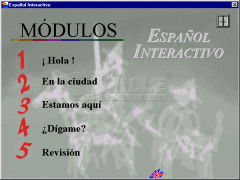
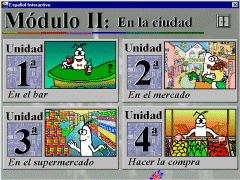
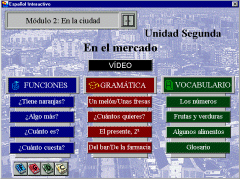
In Español Interactivo, as we can see below, the contents are organised into five modules (Figure 1), each dealing with a given topic and each module is in turn divided into four study units (Figure 2), each relating to a particular sub-topic. Having chosen a unit, the learner is offered the learning goals underlying that unit and is presented with the activity contents screen (Figure 3).
 |
 |
 |
|
Figure
1: Modules
|
Figure
2: Units
|
Figure
3: Activities
|
Each activity contents screen within the program is arranged according to four main sections (video, language functions, grammar and vocabulary), and the activities within each section are related to the main topic underlying that study unit. Organised thus, it is intended that learners will follow the suggested progressive order and focus on the language components being practised in a given section. Thus the language skills to be practised are sequenced without stripping the language of its context.
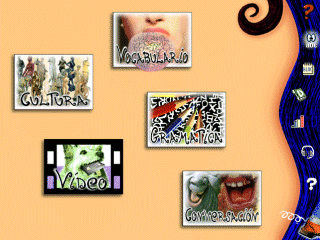 |
Another more direct way of presenting the contents to learners can be found in Español en marcha. Here, after selecting the support language, the main menu page displays five main sections - culture, video, vocabulary, grammar and conversation - and the exercises are arranged according to their primary focus, although in many cases they are interrelated. Each of these menu items gives access to a contents page listing all the activities. This method of arranging contents is generally preferred by teachers who intend to use the package as a complementary aid to their regular classes, since it allows them to visualise the contents of the program in a more straightforward way than the previous example, which is more learner-centred. |
|
Figure
4: Main
menu screen in Español en marcha
|
|
When designing multimedia language courseware we must bear in mind what technology has to offer and how to make the most of it to the advantage of our students. Great care must be taken in drafting the global structure of the courseware, taking into account all the links, resources, utilities that we are going to include - all of which have to be consistent throughout the program. The hierarchy of all the elements must be clearly structured to serve two basic aims:
A hierarchical structure will also be indispensable to determine the program's navigation system. Because of the intricate structure of CALL courseware, menus and sub-menus have to be clearly specified and back-tracking options must be given so that our learners do not get lost in the program maze. To this end a pull-down menu item or an icon should represent the following four actions:
It is always advisable to allow access to all the reference materials at any point in the program. Among the more common items that are included, we might find:
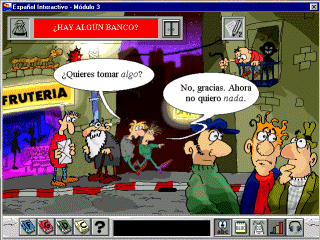
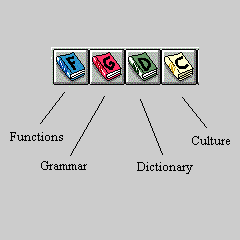
Linking these reference sources to the activities can be achieved very easily by including icons on the exercise screen that will call up a particular reference item. In the example below we can see a number of button icons representing four reference books. These can be accessed either from within an exercise to respond to a particular question which may arise during the study process, in which case an additional window opens up instantly revealing the relevant explanation (which also saves time in having to look up an item in an index page), or they can be approached individually as self-contained sources in their own right and comprise their own navigation system by means of hypertext links. In writing these reference materials we should aim at including only what is relevant and appropriate for the course level and avoid superfluous explanations or lengthy discourse that does not match the linguistic features exploited in the program.
 |
 |
|
Figure
5: Grammar exercise taken from
Español Interactivo |
Figure
6: Detail of reference sources
|
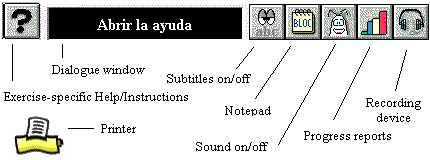
The utilities provided in the program must also be consistent throughout. There are, of course, a large number of items that prove useful to learners. These can be presented either by means of icons discretely located on the screen or as a pull-down menu such as the ones found in any Windows-based program. Among the more useful ones are:
 |
|
Figure
7: Icons representing program utilities in Español Interactivo
|
It is inadvisable to use an excessive number of button icons, which might end up overcrowding the screen, and we recommend that icons always appear in the same place throughout the program. The graphical user interface must be as simple and as intuitive as possible.
It is always beneficial to provide some sort of recording device that will allow learners to record their own utterances and compare them with pre-recorded models or provide graphical representations of their language input. Some of the more entertaining activities are those where students can insert their own recorded versions of a dialogue, for example, and listen back to their own version in an attempt to simulate “real life” communication: v. the Encounters series of CD-ROMs.
Interactive exercises can be based on audio fragments, accompanied by illustrations or pictures, or complete video sequences. They can focus on pronunciation practice at word, sentence or discourse level. Creating exercises based on dialogues and requesting students to play the role of one of the characters is one way of simulating authentic communication in a CALL program. These exercises are also very appropriate for pair work or collaborative learning - e.g. we can request two students to record themselves and recreate a given dialogue completely. Simulations between more than two or three characters are inadvisable to avoid interference on language retention.
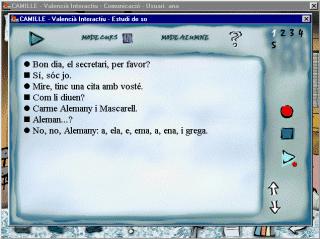
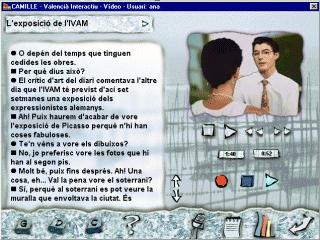
Below are two examples taken from Valencià Interactiu. Figure 8 illustrates the recording device linked to all the interactive exercises, and Figure 9 shows the video recording "studio" linked to video simulation activities. The utterances recorded by students can be stored, for the learner's future reference or for the tutor's supervision, in the temporary file directory, although tutors must be reminded to delete these files now and then in order to save space on local hard drives.
 |
 |
|
Figure
8: Activity audio recording utility
|
Figure
9: Video synchronised audio recording utility
|
A recording device in a CALL package should include such functions as:
- Play: to play current audio/video sequence.
- Pause: to pause current audio/video sequence.
- Instant replay: to instantly play current audio/video sequence from the beginning.
- Fast forward: to play current audio/video passage fast forward and enable search.
- Record: to record learner's voice.
- Replay recording: to replay learner's last recording or sequence of recordings.
- Compare: to compare learner's recording with pre-recorded model.
- Subtitles/script: to show subtitles or full script of current audio/video passage.
CD-ROMs and DVDs allow the storage of large amounts of audio, so we should take advantage of this and include as much sound as possible in our courseware. It is highly beneficial to expose learners to authentic language. Audio can be included in innumerable ways, with or without text reinforcement, to present instructions, feedback, glossaries etc., and will enhance the program features considerably. Small amounts of audio can be recorded digitally and stored as an audio file in a variety of different formats, e.g. WAV or MP3. The WAV format takes up a good deal of storage space, however, but MP3 is a compressed format that is far less greedy in terms of the space it occupies. The minimal audio specifications for reproduction on a standard PC would be: a sampling rate of 11.025kHz mono and a 16-bit resolution. See Section 2.2.3.3, Module 2.2, headed Sound recording and editing software.
An important factor concerning audio is the quality of the sound recordings. We recommend recording large amounts of audio at a professional studio with professional actors - which can work out cheaper than working with amateurs who may have to do numerous retakes over several days. When writing the materials, it is important to keep careful track of which texts have to be spoken by a female or male voice - or in different accents, e.g. British or American English.
The cost of video production can in many cases be decreased by using chroma key background settings in a studio rather than filming on location. This also has the advantage of allowing more control over the sound quality and avoiding unwanted noise from cropping in. Video can sometimes be replaced by using a sequence of synchronised still pictures and audio. The effect for language learning purposes can be remarkable and it is considerably cheaper.
One of the advantages of multimedia technology is the computer's immediate response to a touch of a key or a mouse click, which is very useful when dealing with feedback in reaction to the learner's performance in completing an activity or exercise. Learners, we have observed, tend to find it encouraging to read or hear immediate positive feedback when they have completed an exercise successfully. A considerable variety of text, audio or text and audio messages can appear/be heard at random and graded according to learner achievements. In a number of exercises feedback can be programmed depending on the number of attempts and a specific score given to each of these. We can include appropriate feedback for a "correct answer", a "partially correct answer", an "incorrect answer", or even exercise-specific feedback when a combination of options is required in order to complete an exercise successfully. An adequate way of offering positive feedback, for example, could be to have the audio file of a particular exercise play when a correct answer is given. Feedback, of course, has to be meaningful - and, if possible, intrinsic feedback rather than extrinsic feedback. See:
If extrinsic feedback is used it should always be clear what kind of mistake has been made, and the feedback should provide not only awareness as to where the mistake lies, but also how to improve the learner's performance. Wherever possible, one should avoid abrupt statements such as "No", "Incorrect, try again", but instead provide constructive criticism and try to anticipate and predict our learners' behaviour when completing an activity. This may be achieved by carrying out - prior to the design stage - an error analysis based, for instance, on L1 interference.
See Laurillard (1993a) and Bangs (2003).
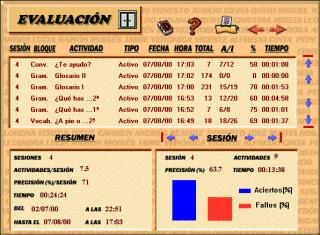
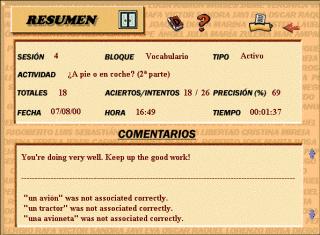
Simple activity-based progress reports, or more elaborate student assessment reports, are of great value for both autonomous learners as well as for tutors intending to supervise their students' work. A simple scoring device indicating the number of correct answers out of a total can become a challenge that some students find motivating. In addition to the scoring device, we may choose to include a chain of score-dependent comments also aiming to encourage the learner to progress further.
 |
 |
|
Figure
10: Student assessment - session report
|
Figure
11: Student assessment - activity report
|
Figure 10 is an example student assessment report taken from Español en marcha. The report summarises:
It also includes a table, indicating for every session:
Figure 11, also taken from Español en marcha, illustrates a more detailed activity-based report. In addition to the information described above, the learner or the tutor can further scrutinise the results achieved in a given exercise and instantly see where the difficulties may lie. For the benefit of autonomous learners, a link from a given activity report to that particular activity is beneficial as it saves time in having to search for it through the contents menus.
Students are very keen on testing themselves and enjoy the challenges of being given a time limit. Another other useful way of monitoring learner performance is to create activities that are time dependent. These activities are especially suitable for pre- and post-level achievement tests. A choice of time limits can also be given for a set number of questions in order to provide different levels of difficulty.
When designing exercises for a CALL program we must ensure variety, coherence, and consistency. Our materials must be based on sound pedagogical principles and firmly grounded on the methodology/ies we have chosen to follow. An attractive graphical user interface will enhance these qualities. We should try to avoid simply transforming typically textbook-type exercises onto a screen and instead try to be as creative as technology (and the programmer) will allow us. Because technology moves so fast it is essential to look ahead towards the future and try to envisage what the new trends might bring about in computer assisted language learning.
One thing to bear in mind when writing exercises is that many of the more traditional activities such as multiple-choice and gap-filling exercises can be designed to function according to several modalities. For instance, a gap-filling exercise could also be designed as a multiple-choice exercise if the learner has to fill in a blank from a list of given options, or as a drag-and-drop exercise if the learner has to select an item from a given list and drag it into a blank space. It is therefore advisable to combine as many different modalities of a sole exercise type in order to avoid repetitions that could perhaps result in our learners' boredom. See Section 3, Module 2.5, headed A sideways look at authoring protocols for language learning. To put it schematically and focusing only on how an activity operates, a simple gap-filling exercise at word level in a given sentence, for example, could appear on screen in any one of the following ways:
In open input exercises (See Section 5.9 below) where learners are requested to type in text (i & ii above) rather than choosing from a number of options - (iii), (iv) & (v) above - it is acceptable to allow learners to make mistakes as long as we provide appropriate feedback and encourage a further attempt - which is a process similar to that found in spellcheckers where incorrect/unknown words are highlighted but not automatically corrected for us.
Although the above modalities belong to a sole exercise type - filling in a blank - the learner is under the impression that the exercises are completely different. Using a combination of these therefore contributes towards variety and diversity in our materials. The choice of one or another modality will, of course, depend on the primary objective of the activity itself. We should always ask ourselves what the learner will gain in terms of language acquisition. If we cannot find a suitable answer to this question, then the activity must be reconsidered.
Consider, for example, modality (i) above. This type would be appropriate if it followed an "observation activity" - a passive activity in the sense that we may request the learner to observe, for instance, a grammatical structure (e.g. comparing both forms of the verb "to be" in Spanish, ser and estar), and then ask him/her to participate more actively, to further explore the use and meaning of language, and to write the appropriate form of either verb, providing perhaps a hint but with no options to choose from. Here we are asking the learner to actually write, allowing him/her to make mistakes, and to put some effort into memorising all the possible verb forms. If the learner has to write the word in response to an audio stimulus, s/he will additionally have to listen, interpret and then react by writing the correct verb form. This modality is better suited for more advanced language practice.
In examples (ii) to (v) above, there is no initial audio stimulus. Instead the audio sequence becomes the positive feedback when the correct answer has been given. This does not mean that there is no stimulus for the learner to react to. We could obviously include sound or illustrations to prompt our learner. The difference, however, between modality (ii) and modalities (iii), (iv) and (v) lies in the fact that in the former the learner again has to write (and there is therefore more at stake), whereas in the other three a mere choice of option is requested. These modalities are better suited to lower level language practice. In Section 5 we discuss different exercise types in more detail.
The many combinations of elements available in multimedia - text, audio, graphics and video - allow writers to create appropriate exercises/activities that suit a particular learning need. Computer assisted language learning is particularly suited to a communicative approach to language acquisition. Language can be presented both in terms of its structures (grammar, vocabulary, etc.) as well as in terms of its communicative functions: thus, our students will be able to learn linguistic structures, establishing relationships between structural and communicative functions in order to develop communication strategies in the target language. The functional and structural content of the courseware can be designed to encourage a range of communicative skills, bearing in mind that these are carried out within a specific social and cultural context.
This section looks closely at the template approach to designing and creating a multimedia CALL package. Templates are also meantioned in Section 6, Module 2.5, headed Language-specific tools for a multimedia age. The approach descibed in this module is rather different, in that templates themselves can be developed by the programmers to cover a more dedicated range of functions. But the principle is still the same - content and functionality are separated, so that the subject specialist - known in technical jargon as the content provider - and the programmer can work independently for a large part of the development process, provided that a solid design document has been produced from collaboration at the earliest possible stage.
The task of the content provider in a CALL development project is not just to write texts in the target language. His/her job includes a range of other tasks: e.g. to write items for a range of different exercise types, to specify pictures that should accompany texts and exercises, to write scripts for audio and video recordings, to specify how the learner should progress through the program, etc. Some of these tasks clearly go beyond the simple provision of materials, and concern pedagogical issues. This falls under the heading of instructional design.
The task of the programmer is to make everything happen according to the wishes of the content provider/instructional designer. It is therefore essential that the designer spells out in precise detail what is to appear on screen and what should happen as the learner interacts with the program - in other words, a full description of what is known in technical jargon as an event. The programmer can advise on the feasibility of certain events, indicating to what extent the content provider's wishes can be carried out within the budget and time constraints of the project. The designer and programmer have to agree on the exercise types, reference materials and overall functionality of the courseware. This is best done by creating an instructional design document at an early stage. The main interactive design that the programmer will use is based on this document. To this end a set of templates have to be worked out, into which the content provider slots the texts and other resources (feedback, help notes, etc.), and clarifies to the programmer how the different building blocks of each event are to be assembled. A template looks rather like a form that has to be filled in, providing the programmer with the essential information that he/she needs in order to assemble the building blocks - known in technical jargon as assets. The assets of a CALL package might consist of:
These assets are normally created and held outside the program itself. For example, a word-processor might be used to write texts and exercise items, and photographs might be taken with a digital camera, manipulated with a graphic design package, and stored in JPG format. The advantage of holding the assets outside the program is that they can easily be altered without the intervention of the programmer. The content provider may, for example, find a number of typing errors in a text. These can be corrected in a word-processor and then the revised text file can be handed over to the programmer for incorporation into the program. Similarly, the graphic designer may need to crop or retouch a photograph, or even replace it with a completely different photograph for a particular event - all of which can be done without constantly referring to the programmer. The task of producing different language versions is also made easier, as translators can simply create a new set of text files in the required new target languages.
A system of labelling all the events and assets has to be agreed, each event and asset being given a unique label, i.e. a name and/or number, so that it is clear what is being referred to. As an example, a labelling system could perhaps consist of:
This makes the label look something like E5100310.wav, meaning this is the 10th audio file in Exercise 3 of Lesson 10 in Module 5, in an English language package. It is advisable to keep the labelling system down to eight characters to avoid incompatibilities with some programs and operating systems.
In the course of the initial process of consultation, the content provider and programmer will draw up a list of activities and exercise types. These may include:
The above list of templates is only a small selection of the many templates that linguists/content providers and computer programmers might use in order to design a CALL package. The authors of this module are aware of over 30 possible combinations of elements (audio, text, graphics and video) in a CALL program. By making discrete use of this huge choice it is possible to create attractive exercises and activities that enhance the interactive quality of the final product, avoiding repetitive and monotonous exercises that decrease students’ motivation. All the elements that comprise a multimedia package are interconnected, so the templates must contemplate every single feature that appears on the screen at a given moment, e.g. links to and from exercises to reference materials, media to be included, etc.
The following descriptions illustrate the type of template design documents that can be developed for rapid integration of content. These may take many forms, but those shown here are typical.
Virtually all CALL packages include multiple-choice exercises, which may take a variety of forms, e.g.
The combinations of question and answer can also take several different forms:
Multiple choice exercise types can also differ considerably according to the nature of the feedback presented.
Sample multiple-choice (single-selection) exercise taken from Español Interactivo:
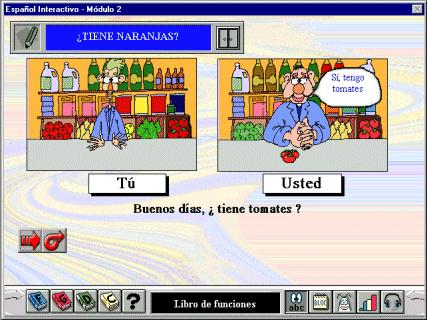
This exercise belongs to Module 2 En la ciudad, Unit 2 En el mercado, where situations dealing with "going shopping" are practised. Here, the difference between both forms of the pronoun "you" in Spanish are being distinguished.
The default mode is with no text. There is an audio stimulus to prompt the learner (e.g. Buenos días, ¿tiene tomates?) to click on one of the two options provided -"tú" or "usted"- according to the form heard in the audio. Once the appropriate option is selected, positive feedback is offered as we hear the salesman respond to our question and a picture of the requested item appears on the shop counter. Instructions are given in audio although written versions, both in the support language and the target language, are available by clicking on the help button icon.
Virtually all CALL packages include gap-filling exercises - which may take a variety of forms, e.g.
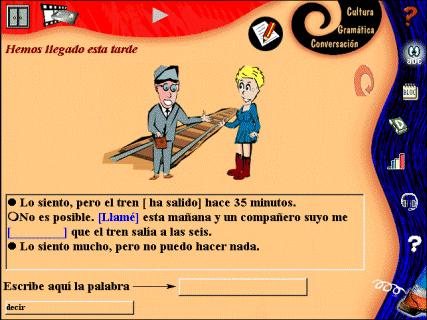
Sample gap-filling template taken from Español en marcha:
Template type: Gap-filling (learner types text)
Identification label: G5_11
Back menu: ind_gram (Grammar exercises index screen)
Section: Gramática
Exercise: Hemos llegado esta tarde
Instructions: Escribe en el recuadro el pretérito perfecto del verbo correspondiente. Cuando hayas completado correctamente todos los huecos, oirás el diálogo. Pulsa sobre el icono de "volver a escuchar" para oír el texto de nuevo. Consulta el libro de gramática para repasar la teoría. Acuérdate de acceder al "estudio de grabación" para practicar tu pronunciación.
Text
with gaps:
1.
Oficial: Lo siento, pero el el tren [GAP 1] hace 35 minutos.
Pasajera: No es posible. [GAP 2] esta mañana y un compañero suyo
me [GAP 3] que el tren salía a las seis.
Oficial: Lo siento mucho, pero no puedo hacer nada.
Correct answers:
1.
Gap 1. ha salido
Gap 2. he llamado
Gap 3. ha dicho
Positive feedback:
- After each gap is successfully completed: randomised positive audio reinforcement.
- After whole sequence is successfully completed: audio sequence is played.
Negative feedback: Wrong answers will be slotted in gap but highlighted in blue for learner to select and retry.
Number of tries: Unlimited by reselecting gap.
Pictures/graphics:
1. Young lady speaking to train station official.
Picture/graphic source(s):
1. G5_1101.bmp
Audio source: To be heard
as positive feedback
1. G5_1101.wav
Icons on screen:
- Activity-specific: Start, next, replay audio, cancel selection, show answer
- Program-specific:
Close
Video
Notepad
Dictionary
Progress report
Recording studio
Help
Grammar
Functions
Culture
Exit
Grammar notes: Link to page 24 in grammar book.
Functions: Link to index page.
Culture: Link to index page.
Programming instructions: All 10 dialogues will be available in "recording studio" for learner to practise pronunciation.
Screen layout:
This type of exercise became possible with the advent of the MPC and now
features in most CALL packages. Early language-lab exercises on MPCs were based
largely on traditional three-phase and four-phase drills but more imaginative
exercises have been designed: e.g. the role-plays in Encounters
and the exercises using Automatic Speech Recognition (ASR) in Talk
to Me and Tell me More.
For further information on ASR see:
Language lab activities are useful when we want students to record their own voice and compare it with a pre-recorded model. The recorded model may range from isolated words, sentences or larger units of meaning such as exchanges in a dialogue. An interesting type of prompted speaking activity was developed in France Interactive, combining a video sequence and student voice recording. The template takes the following form:
Template type: Prompted speaking
Identification label: S00000
Associated activity: To indicate the exercise that this activity is based on and provide the appropriate link.
Section/Module: To indicate the section or module that this exercise belongs to in relation to the whole course.
Lesson/Unit: To indicate the lesson or unit that this exercise belongs to within a given section/module.
Activity/Exercise: Name of activity/exercise as it will appear on screen.
Instructions: Text/audio/text & audio instructions to carry out exercise. Aim of exercise. Learning goal. Tips.
Audio/Video script: Text of audio or video script.
Audio/Video source: Audio or video source file corresponding to complete script.
Pictures/graphics: Accompanying pictures/graphics to illustrate audio script when a video source is not used.
Picture/graphic source(s): Source file of accompanying pictures/graphics.
Icons
on screen:
- Activity-specific: These will refer to the necessary icons to record, play
and compare student recordings such as those described in Section
3.10 above.
- Program-specific: Any other icon which has to appear on screen such as: close
window, exit program, etc.
Pull-down/icon
menu items:
Dictionary
Print
Progress report
Use of language notes
Advice
Use of language notes: To be provided here, or reference made to an appropriate link.
Advice: In the form of learning strategies to help learner. To be provided here.
Programming instructions: Comments to help the programmer understand how the exercise works.
Screen layout: Draft of screen layout taking into account all the elements to appear.
Clickable text on screen is a useful feature of CALL packages, allowing the student to call up a dictionary or grammar notes simply by clicking on words and phrases on screen. In the Encounters series of CD-ROMs the program code (which was written in Authorware) was designed to read a script in which each line of the dialogues presented to the learner was annotated. Composing the scripts was a straightforward process, using a standard word-processor. The following is a node of information from one of the scripts:
| ... und nehmen Sie die dritte Straße
rechts. ... and take the third street on the right. g7_5.wav nehmen, Sie, die, dritte 24, 24, 10, 42 |
The first and second lines of the above script contain the German text of one line of a dialogue and its translation into English, which the student can call up by clicking on a “translation” button at the top of the screen. The third line is a reference to the sound file containing the spoken German text, which the student can hear by clicking on a loudspeaker icon to the left of the line of dialogue. The fifth line contains the words that are to be annotated, and the sixth line contains references to the notes that will appear on screen if the student clicks on any of these words. Thus, clicking on either nehmen or Sie will call up Note 24 on the imperative forms of verbs, which is part of a large text file of grammar and background notes. The number 24 is simply a pointer to the appropriate place in the file. Again, the grammar and background notes were composed by the content provider in a word-processor. Here is the actual Note 24:
Imperative forms of verbs: Sie and ihr forms
The imperative familiar plural is formed thus:
Take the 2nd person plural (ihr form) of the present tense and remove the word ihr:
|
Infinitive |
Present |
Imperative |
|
bringen |
ihr bringt |
bringt! |
|
sprechen |
ihr sprecht |
sprecht! |
The formation of the imperative formal (when saying Sie) is simple:
Take the Sie form of the present tense and turn the words around.
|
Infinitive |
Present |
Imperative |
|
gehen |
Sie gehen |
gehen Sie! |
|
nehmen |
Sie nehmen |
nehmen Sie! |
Similarly, a click on die will call up Note 10 on the accusative case, and clicking on dritte will call up Note 42 on ordinal numbers. Some of the notes relate to background and usage rather than grammar, e.g. the note on greetings:
Greetings
guten Tag is one of the most frequently used forms to greet people.
Others include:
guten Tag! - hello, good day, good afternoon
grüß Gott! - hello, etc. (mainly used in South Germany and Austria)
guten Morgen - good morning
guten Abend - good evening
grüß dich! - hi! (informal)
hallo! - hi! (informal - and "hello" on telephone)
servus! - hello or goodbye (common in the South)
guten is often left out - as in English "morning" instead of "good morning".
Whilst the process of creating the scripts and grammar and background notes for Encounters was very straightforward, requiring no programming expertise on the part of the content provider, such a structure could be error-prone, and this could be avoided by the creation of a graphical interface or sets of boxes into which a node (see above) could be inserted.
A recent example of this type of activity can be found in wordPROF, whereby the learner clicks on various parts of the screen, e.g. calling up items of vocab to be learned. One of the first packages to implement this kind of activity was Just Grandma and Me in Broderbund's Living Books series, first published in 1993. A later package in the Living Books series, The Tortoise and the Hare, developed the technique even further. See Section 3.4.2, Module 2.2, headed CD-ROMs for young learners.
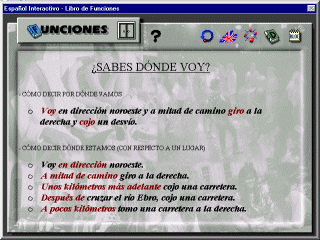
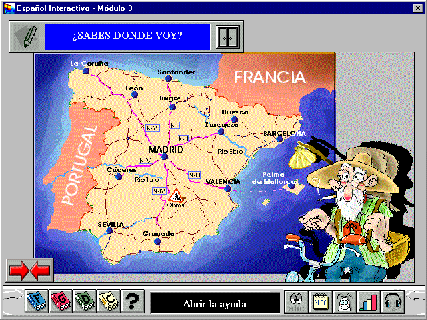
This exercise type may be used when students are requested to click on a number of "hot spots" on a picture or image or click on a number of picture items, in reaction to a written or audio stimulus. For example, an activity to practise locations, where a map is displayed, and after hearing an audio stimulus, the learner has to click on a specific place/item on the map. A less active modality of this exercise type is useful for introducing new vocabulary - having learners click on a picture or a selected area of a larger image with the effect of an audio fragment being heard and, optionally, its written version being displayed.
Sample clickable image template and exercise taken from Español Interactivo:
Template type: Clickable image on screen
Identification label: M3U3F1
Back menu: Activity menu screen in Module 3, Unit 3 (M3U3)
Module: Módulo 3 - Estamos aquí
Unit: Unidad 3 - ¿Hay algún supermercado?
Exercise: ¿Sabes dónde voy?
Audio instructions: Averigua a qué ciudad se dirige este personaje. Escucha las indicaciones y después haz clic sobre las ciudades de destino.
Text
and audio stimulus:
Item 1.
Me dirijo hacia el este por la Nacional III desde Madrid y cuando llego a Valencia
cojo un barco que me lleva a la ciudad elegida. ¿Sabes dónde voy?
List items:
Item 1: Palma de Mallorca
Audio responses:
Item 1: Madrid - Palma de Mallorca
Picture/graphic(s): Map of Spain
Picture/graphic source: M3U3F101.bmp
Audio source: M3U3F101.wav
Number of tries: Unlimited
Correct answers: Same as audio responses.
Feedback: Text/Audio/Text & audio
Icons on screen: Start, next, replay audio, close window, exit program
Icon
menu items:
Functions
Grammar
Dictionary
Help
Show text
Notepad
Sound off
Progress report
Recording studio
Grammar notes: Link to index page.
Functions: Link to page 39.
Programming instructions: Audio and script available in "recording studio".
Screen layout:
In this type of exercise learners have to match two lists of items in any of the following combinations:
The association of elements can be carried out by moving the second list of items to match the first list or, alternatively, both lists may remain static on the screen and matched by clicking consecutively on one and another item and indicating correct match by means of, for example, arrows or simply playing an appropriate audio sequence. The matches can of course be one-to-one (single-selection) or one-to-many (multiple-selection). The above combinations provide a considerable number of variations so as to allow writers to create a fair amount of entertaining as well as didactically efficient activities.
Sample single-selection matching exercise taken from Valencià Interactiu:
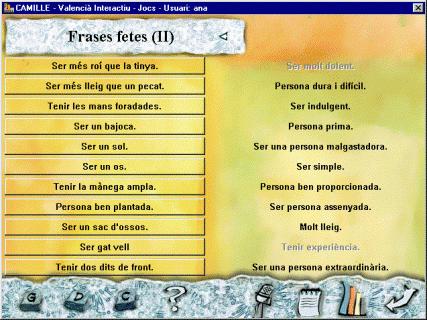
This exercise belongs to the section devoted to past-times, Jocs. It is the second part of an exercise that introduces the meaning and use of certain idioms: "Frases fetes". The learner clicks on an item from the list on the left, hears it, and has to match it with the appropriate meaning from the column on the right by dragging it over the screen and aligning it with the selected idiom on the left hand side. If the match is correct, the learner immediately hears a randomised positive audio reinforcement and the selection fades to indicate that the option is no longer active. Incorrect matches are indicated by hearing a randomised negative reinforcement.
Drag-and drop exercises are key feature of many CALL packages. Strictly speaking these are computer interactions rather than exercise or template types in themselves, as virtually any type of exercise can be presented as a drag-and-drop activity, e.g.
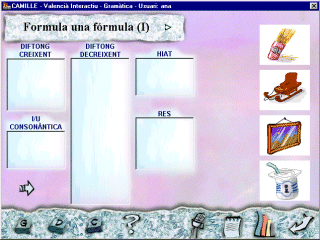
Sample drag and drop exercise taken from Valencià Interactiu:
 |
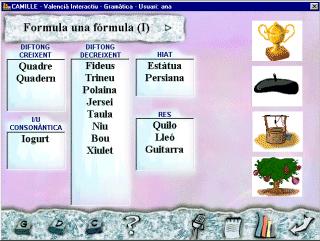 |
This exercise belongs to the grammar section, and is the first in a series of five activities devoted to distinguishing vowel sounds. The screen on the left above shows the entry screen. The student sees before him/her pictures representing the word that has to be dragged into an appropriate box according to its vowel sound. If successfully completed, the picture is transformed into its written form and a voice pronounces it. If unsuccessfully completed, negative feedback is provided. Unknown words can be looked up in the dictionary, and the grammar book can be consulted upon request.
Reordering, or putting a number of items in their correct sequence, can take several different forms:
Sample reordering exercise taken from Español Interactivo:
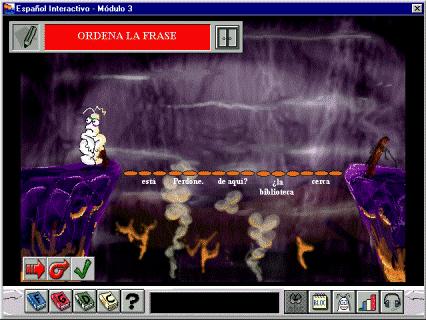
This exercise, Ordena la frase, belongs to Module 3, Estamos aquí, Unit 4, Ciudades y pueblos. It is designed to practise word order at sentence level. Instructions to carry out the activity and its aim are heard on entering, as well as being available in the help window. The learner is requested to move the stepping stones (words/expressions) so that our mascot Flaudio can walk across them. Positive feedback is provided by means of an animation - Flaudio successfully walking across the stepping stones - and the audio sequence is played. Help is given by listening to the sentence, which can be replayed as many times as required. The solution can be called up by clicking on the " tick" button icon. Access to all reference materials is provided, including the dictionary to look up unknown words.
Open input exercises, also known as free text entry exercises, have become less popular in recent years. The programming skills that featured in programs such as CLEF and TUCO, both of which were developed during the late 1970s and early 1980s, seem to have been lost in the mists of time. Both these packages contained open-input gap-filling exercises, and the programs were cleverly designed to analyse the student’s input and to respond to mistakes. Nowadays it seems that most CALL programs embody a point-and-click-let's-move-on-quick approach, without expecting the learner to reflect on his/her errors.
CLEF has recently been revamped in a new Windows version, published by Camsoft (UK) and the University of Guelph (Canada). In an exercise on French verbs in CLEF the expected answer might be je voudrais. If the student types "je voudrait", he/she receives a message indicating that there is something wrong with the ending, giving the student a chance to identify the error - if necessary by consulting verb conjugation tables.
TUCO was programmed to respond to certain types of anticipated errors. For example, if the student wrote "Ich setzte mich auf das Bank", the computer would respond by indicating that the case of the definite article was correct after a verbal phrase of movement towards a location but that the gender was wrong.
The designers of CLEF and TUCO had to anticipate possible errors and write a range of appropriate comments depending on the nature of the error – quite a tedious job, but one which can be carried out by the content provider using an appropriate template. It is, however, possible for a competent programmer to write a generic input analysis routine so that certain kinds of errors are automatically picked up.
Missing diacritics can be dealt with by a very simple input analysis routine. If the anticipated answer to a question is "café" and the learner types "cafe", the input analysis routine picks up the missing accent and gives the learner feedback such as "You have missed out an accent" or highlights the "e" as requiring a diacritic.
Simple spelling errors can easily be handled by a computer program, even when there is a range of acceptable answers. This is a key feature of Camsoft's GapKit, which is able to match the student’s input with a range of possible alternative answers, homing in on the correct answer that most closely matches the student’s input. Let’s suppose that there are two possible answers to a question: Stuhl or Sessel (“chair” or “armchair”). If the student types “Stul” the program will automatically recognise that the student is aiming at the first alternative answer, Stuhl, accepting the first three letters as correct and indicating that the ending is wrong. If the student types “Kessel”, the program will recognise that the student is aiming at Sessel and indicate that only the first letter is wrong. If the student types “Sassel”, the program will indicate that only the second letter is wrong. The teacher who provides the content for GapKit does not have to do anything other than type the questions and a set of alternative answers. The program does the rest. This automatic analysis technique also works with short phrases, but the results can be unpredictable with longer phrases or complete sentences - see the next paragraph.
Now we get on to the clever stuff - all of which was embedded in CALL programs written back in the 1980s. If the student is asked to transform a sentence and input the whole transformed sentence as an answer, then you need a more sophisticated input analysis routine to pick up all the possible errors and to accept correct alternative answers. One approach is to parse the learner's input automatically, which works to a limited extent. Attempts have been made to develop automatic parsers - intelligent tutoring systems - that analyse the student’s input and indicate to what extent it is correct: see Section 8, Module 3.5, headed Parser-based CALL, and Heift (2001). Parsers have their limitations, however. For example, a parser could perceive the sentence “Beautiful green ideas sleep furiously” as grammatically correct even though it does not make a lot of sense. Another approach is to anticipate alternative answers, but there may be hundreds of these. Authoring programs such as Wida Software's Testmaster were able to handle a range of alternative answers way back in the 1980s, with the minimum of effort on the part of the teacher. Let us look at an example exercise:
Rewrite the following sentence,
beginning with the words This is the first time
I have never had this kind of food before.
There are numerous grammatically and semantically correct answers to the above exercise that might be accepted by the teacher, e.g.
This is the first time that I've
had this kind of food.
This is the first time I have ever eaten this kind of food.
This is the first time that I've tasted this kind of food.
This is the first time I have tried this sort of food.
Most of the acceptable answers can be anticipated by the teacher by expressing them in a string that might look like this:
This is the first time (that) I ['ve/have] (ever) [had/eaten/tasted/tried] this [kind/sort/type] of food.
The above string reflects the following table in which there are compulsory elements, optional elements and alternative elements within the answer.
| Compulsory | Optional | Compulsory | Alternatives | Optional | Alternatives | Compulsory | Alternatives | Compulsory |
| This is the first time | that | I | 've | ever | had | this | kind | of food |
| have | eaten | sort | ||||||
| tasted | type | |||||||
| tried |
The appearance of such a string will vary according to the programming language or the authoring system used to produce the open-input exercise. Among existing programming languages, Perl is generally acknowledged as being quite efficient in string-handling, and its "regular expressions" are also available to other languages, e.g. Javascript. Teachers who use Javascript to author their own exercises may be interested in the routines developed by Joseph Rézeau to automatically generate valid answers from regular expressions: http://pagesperso-orange.fr/joseph.rezeau/eao/developpement/expandRegexpToString.htm
The above string (This is the first time...) is listed among the provided examples and you'll see that it generates no less than 96 acceptable answers!
Branching dialogues are a common feature in many CALL simulations. Such packages usually contain dialogues in which a character on screen interacts with the language learner, who plays a role in a dialogue or series of dialogues that can branch in different directions depending on the learner's responses. The learner chooses from a set of given responses in multiple-choice format, as open-input from the learner would obviously be difficult to analyse.
EXPODISC is a simulation offering basic training in Spanish for exporters and covering both practical business language and social language skills. The learner is invited to prepare and participate in an export sales trip to Madrid. The learner is cast in the role of assistant to the export marketing manager, the formidable Ms Robinson. The product that Ms Robinson and her assistant are trying to sell is authentic: the ELGA Ultra High Quality Water Purifier. The learner has to practise his/her Spanish and react to different situations as they arise. Branching is an important feature of EXPODISC, and the content authors, Paul Bangs and Sally Staddon, had to work with complex templates covering different versions of the dialogues, depending on the learner's choices - and which items the learner had put in his/her virtual "briefcase", e.g. confirmation of a hotel reservation, publicity pamphlets, etc. The story has a negative outcome if the learner performs badly, and a positive outcome if everything goes well, including a trip to a bar and a restaurant.
Montevidisco is a simulation in which the learner is cast in the role of a tourist in the fictitious town of Montevidisco and must interact with salesmen, waitresses, policemen, leering men or flirtatious barmaids - there is a male and female version of the story - and other inhabitants of the tourist town. The player is addressed on the video by a character, usually a talking head, and responds by clicking on one of several possible printed answers - one of which is always "What did you say?" - to get a repetition. The player has access to a map, to the voice of a "friend" who repeats the question using the "tú" forms, to a transcript, dictionary, or English translation of the replies he/she must choose. The video segments are quite brief and there are many possible routes through the story. One can bargain for goods, order and then refuse to eat a restaurant meal, and so on. The story may take many different turns and twists. In one version that the author saw demonstrated, the learner accompanied a suspicious character to a bar, got drunk, sought a hangover cure at a chemist's, was offered an injection instead of an aspirin, and finally ended up in hospital.
EXPODISC and Montevidisco
were developed as interactive videodiscs in the 1980s. Another package of this
type, A la rencontre de Philippe (Fuerstenberg 1993),
is described in Section 1.2, Module 2.2, headed
A brief history of multimedia.
Who is Oscar Lake? is good example of a simulation on CD-ROM. It is described in Section 3.4.9, Module 2.2.
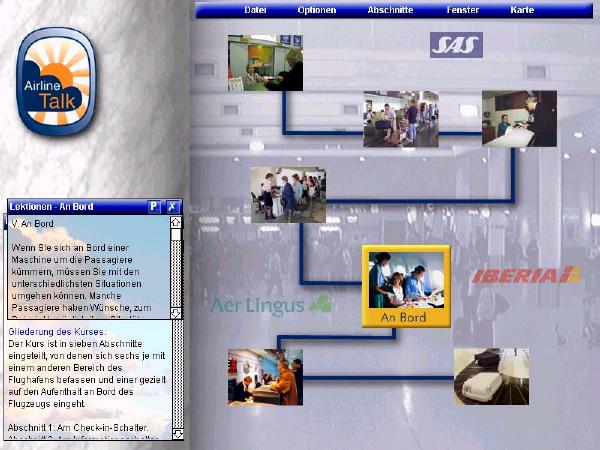
Branching dialogues are often used in teaching languages for business. The Airline Talk series of CD-ROMs contains a number of scenarios in which an employee of an airline has to defuse a potentially explosive situation by responding in the right way to a passenger's complaint or problem. Here it not only a question of choosing a way to respond that is in line with the company's policy but also expressing it in appropriate language. In one scenario a passenger arrives at the check-in desk five minutes before his plane is due to leave. The scenario can progress in a variety of different ways, with the clerk eventually calming the passenger down and offering a solution, or it can follow a disastrous route, e.g.
The ideal route
Passenger: Good morning.
Am I too late for the flight for Frankfurt?
Check-in clerk: I think so, sir, can I just see your ticket?
Passenger: Here you are.
Check-in clerk: I'll just check if boarding has closed yet. Wait a moment
please.
Passenger: Thanks.
Check-in clerk: (On the telephone) This is Janet at the check in. Can
you tell me if 347 has closed yet... …OK. I'm sorry sir, they closed the doors
on time and the plane is moving away from the gate already.
Passenger: Oh no, what am I going to do?
Check-in clerk: I suggest you go to the ticket desk and see if they are
willing to transfer you to the next flight.
Passenger: Is that possible with this ticket?
Check-in clerk: Well you may have to pay something extra. But I think
there is plenty of space on the flight. Would you like me to check?
Passenger: Yes, please. How stupid of me, I forgot to set my alarm and
I simply overslept. And the traffic was terrible this morning.
Check-in clerk: Well, these things happen, sir. Anyway, there are plenty
of seats on the 12.30 flight.
Check-in clerk: You will need to be quick though, check-in has already
started.
Passenger: OK, where is the ticket desk?
Check-in clerk: Go up those stairs, turn left at the top, and you will
see the sign.
Passenger: OK, thanks for your help.
The disaster route
Passenger: Good morning.
Am I too late for the flight for Frankfurt?
Check-in clerk: I think so, sir, can I just see your ticket?
Passenger: Here you are.
Check-in clerk: I'm afraid you're much too late. In future you should
try to be on time.
Passenger: Oh, no, what am I going to do?
Check-in clerk: I'm sorry, sir, but there is nothing I can do. This ticket
cannot be changed. It is your responsibility to be here on time for the flight.
Passenger: Look I realise that, I didn't miss the plane on purpose you
know. I absolutely have to be in Frankfurt today. Can't I get on another flight?
Check-in clerk: Not with this ticket, sir. This ticket was only valid
for the flight you just missed.
Passenger: Bloody hell! Nothing is going right today. I wish I had never
come to London.
Check-in clerk: Well, I am sorry sir, but I'm afraid I have other passengers
to check in. Would you mind moving out of the way.
Passenger: Oh, very well! Next time I'll buy a proper ticket and fly
with an airline that treats passengers politely!
Check-in clerk: Next, please!
Within these two main routes there
are different permutations that allow the clerk to redeem the potentially disastrous
situation at any point that it starts to go wrong. Trainees are encouraged to
experiment in order to see which strategies work best.
Screenshot from the opening screen of Airline Talk (German):
Sunpower: Another language package designed for training business people is Sunpower, a multimedia CD-ROM designed to promote communication strategies. It includes several interactive video sequences that can follow different routes along the same lines as the Airline Talk scenarios.
Clearly, scripting simulations like these takes a lot of planning on the part of the instructional designer and places great demands also on the content authors and creators. But although the programmer has to work with a complex tree diagram in the design, the actual interactive programming is often relatively easy if the design document specifies clearly the interconnections between the branches, such as feedbacks, remedial loops, re-starts and so on, since the programmer has to deal mostly with routines of what are known as if/then/else types.
Such simulations have a lot in common with the text-only adventures, which date back to the early days of computing, and text mazes (also known as action mazes). See the Glossary under the entry Maze. See Section 3.7, Module 1.4, headed Plus ça change...?
Bangs P. (2001) EUROCALL 2001 paper titled "Will the Web catch enough flies? Where Web-based learning cannot yet reach".
Bangs P. (2003) "Engaging the learner - how to author for best feedback". In Felix U. (ed.) Language learning online: towards best practice, Lisse: Swets & Zeitlinger.
Bertin J-C. (2001) "CALL material structure and learner competence". In Chambers A. & Davies G. (eds.) Information and Communications Technology: a European perspective, Lisse: Swets & Zeitlinger.
Bickerton D. (2000) "Can (and should) academic linguists become multimedia authors?" In Fremdsprachenlernen mit Multimedia [...], Triangle 17, 30–31 janvier 1998. Paris: ENS Editions (for Goethe-Institut, ENS Fontenay/Saint-Cloud, The British Council).
Blin
F., Chénik N. & Thompson J. (eds.) (1998) CALL courseware development:
a handbook. Hull: EUROCALL, CTI Centre for Modern Languages, University
of Hull. Available in Acrobat PDF format at: Courseware_Directory.pdf
Chapelle C. (1997) "CALL in the Year 2000: still in search of research paradigms?" Language Learning & Technology 1, 1: 19-43. Available at: http://llt.msu.edu/vol1num1/chapelle/default.html
Chapelle C.A. (1998) "Multimedia
CALL: lessons to be learned from research on instructed SLA", Language
Learning and Technology 2, 1: 22-34. Available at:
http://llt.msu.edu/vol2num1/article1/index.html
CLEF (Computer-assisted Learning Exercises for French) (1985) Developed by the CLEF Group, Canada, including authors at the University of Guelph, the University of Calgary and the University of Western Ontario. Published by the University of Guelph (Canada) and Camsoft (UK): http://www.camsoftpartners.co.uk/clef.htm
Collis B. (1995) Telelearning in a digital world, London: International Thomson Press.
Davies G. (1991) "EXPODISC: an interactive videodisc package for learners of Spanish". In Savolainen H. and Telenius J. (eds.) Eurocall 91 proceedings, Helsinki: Helsinki School of Economics. Also in Buchholz E. (ed.) (1989) Fremdsprachenlernen mit Mikrocomputer und anderer Informationstechnik, Rostock: Wilhelm-Pieck University. Available at: http://www.camsoftpartners.co.uk/expodisc.htm
Davies G., Hickman P. & Hewer S. (1994) Style guidelines for developers, Hull: The TELL Consortium, University of Hull.
Davies G. D. (1997) "Lessons from the past, lessons for the future: 20 years of CALL". In Korsvold A-K. & Rüschoff B. (eds.) New technologies in language learning and teaching, Strasbourg: Council of Europe. Also on the Web at: http://www.camsoftpartners.co.uk/coegdd1.htm
Delcloque P. (2001) "DISSEMINATE or not? Should we pursue a new direction: looking for the "third way" in CALL development?" In Chambers A. & Davies G. (eds.) Information and Communications Technology: a European perspective, Lisse: Swets & Zeitlinger
Fuerstenberg
G. (1993) A la rencontre de Philippe: Videodisc, Software, Teacher's Manual
and Student Activities Workbook: Yale University Press. See:
http://web.mit.edu/fll/www/projects/Philippe.html
Grace C. (1998a) "Retention of word meanings inferred from context and sentence-level translations: implications for the design of beginning level CALL software", Modern Language Journal 82, 4: 533-544.
Grace C. (1998b) "Personality type, tolerance of ambiguity, and vocabulary retention in CALL", CALICO Journal 15, 1-3: 19-45.
Heift T. (2001) "Error-specific and individualised feedback in a Web-based language tutoring system: Do they read it?" ReCALL 13, 1: 99-109.
Hoven D. (1997) "Instructional design for multimedia: towards a learner centered CELL (Computer Enhanced Language Learning) model". In Murphy-Judy K. (ed.) NEXUS: The convergence of language teaching and research using technology, Durham, NC: CALICO.
Hubbard P. (1987) "Language teaching approaches, the evaluation of CALL software, and design implications". In Smith W. (ed.) Modern media in foreign language education: theory and implementation, Lincolnwood, IL: National Textbook Company.
Hubbard P. (1992) "A methodological framework for CALL courseware development". In Pennington M.C. & Stevens V. (eds.) Computers in applied linguistics, Clevedon: Multilingual Matters.
Kearsley G. (2000) Learning and teaching in cyberspace: http://home.sprynet.com/~gkearsley/cyber.htm
Krüger A. & Hamilton S. (1997) "Individual language tutoring through intelligent error diagnosis", ReCALL 9, 2: 51-58. Available at: http://www.eurocall-languages.org/recall/pdf/rvol9no2.pdf
Laurillard D. (1993a) Program design principles, Hull: The TELL Consortium, University of Hull. This document is incorporated as Annex 1: Program design principles into Laurillard (1996).
Laurillard D. (1993b) Rethinking university teaching, London: Routledge.
Laurillard D. (1996) Formative evaluation report: the TELL Consortium, Hull: The TELL Consortium, University of Hull.
Levy M. (1997) CALL: context and conceptualisation, Oxford: Oxford University Press.
Levy M. (1998) "Two conceptions of learning and their implications for CALL at the tertiary level", ReCALL 10, 1: 86-94. Available at: http://www.eurocall-languages.org/recall/pdf/rvol10no1.pdf
McCarthy B. (1994) "Discerning the teacher behind the software", ReCALL 6, 2: 23-28.
McCarthy B. (1998) "Choice and constraint in software design", ON-CALL 8, 2.
Myles S. (1998) "The language learner and the software designer: a marriage of true minds or ne'er the twain shall meet?" ReCALL 10, 1: 38-45. Available at: http://www.eurocall-languages.org/recall/pdf/rvol10no1.pdf
Nielsen J. (1995) Multimedia and hypertext: the Internet and beyond, Academic Press: Boston.
Nielsen J (1997) Be succinct! Writing for the Web, Alertbox, 15 March 1997.
Nielsen J. (1998) Fighting Linkrot, Alertbox, 14 June 1998.
Nielsen J. (2010) iPad and Kindle reading speeds, Alertbox, 2 July 2010.
Plass J.L. (1998) "Design and evaluation of the user interface of foreign language multimedia software: a cognitive approach". In Language Learning and Technology 2, 1: 35-45. Available at: http://llt.msu.edu/vol2num1/article2/index.html
Riley F. (1995) Developing multimedia courseware. Hull: University of Hull.
Salaberry M.R. (1996) "A theoretical foundation for the development of pedagogical tasks in computer mediated communication", CALICO Journal 14,1: 5–34.
Schneider E.W. & Bennion J.L. (1984) "Veni, vidi, vici, via videodisc: a simulator for instructional courseware". In Wyatt D. H. (ed.) Computer assisted language instruction, Oxford: Pergamon.
Sims R. (1996) "Interactivity: a forgotten art?" In Instructional Technology Research Online. See Research Repository at: http://www2.gsu.edu/~wwwitr/
Stevens V. (1989) "A direction for CALL: from behavioristic to humanistic courseware". In Pennington M.C. (ed.) Teaching languages with computers: the state of the art, La Jolla, CA: Athelstan.
Taylor H. (1987) TUCO II. Published by Gessler Educational Software, New York. Based on earlier programs developed by Taylor H. & Haas W. at Ohio State University in the 1970s: DECU (Deutscher Computerunterricht) and TUCO (Tutorial Computer).
Troffer A. (2000) "Writing effectively online: how to compose hypertext": http://homepage.mac.com/alysson/httoc.html
Airline
Talk: The Airline Talk project was coordinated by Thames Valley University,
London, and completed in 2001. The project team has now been disbanded and the
CD-ROMs that they produced are no longer available. The archived Airline
Talk Website will give you an overview of the project.
Encounters: Bangs P. et al. (1995-97). A series of CD-ROMs for learners of French, German, Spanish, Italian, Portuguese. University of Hull, The TELL Consortium.
Español
Interactivo: Gimeno-Sanz A. & Navarro C. (1998). Beginners level Spanish
multimedia courseware on two CD-ROMs + user's manual, with English and French
as support languages. Developed as part of the CAMILLE Project. Barcelona, Difusión.
Description in Spanish: http://www.upv.es/camille
Español en marcha: Gimeno-Sanz A. & Navarro C. (1998). Intermediate level Spanish multimedia courseware on one CD-ROM + user's manual, with English, French and German as support languages. Developed as part of the CAMILLE Project. Barcelona, Difusión. Description in Spanish: http://www.upv.es/camille
France Interactive: Emery C. & Ingraham B. (1995). Beginners level French courseware. Developed as part of the CAMILLE Project. Teesside University.
GapKit: http://www.camsoftpartners.co.uk/gapkit.htm
Sunpower: communication strategies in English for business people: http://www.sunpower.fh-koeln.de/BEENGL.HTM.
Tell me More: http://www.tellmemore.com/
Valencià Interactiu: Gimeno-Sanz A., Navarro C. & Montesinos A., (2000). Beginners level courseware for learners of Valencian. Monolingual. Valencia, Bromera: http://www.upv.es/camille
Who is Oscar Lake? This series of CD-ROMs is a modern-day version of the classic adventure game. Available in French, German, Spanish, Italian and English. Available from World of Reading.
wordPROF: http://www.wordprof.com
Adobe Audition: The successor to Cool Edit: http://www.adobe.com/uk/
If you wish to send us feedback on any aspect of the ICT4LT website, use our online Feedback Form or visit the ICT4LT blog.

The Feedback Form and a link to the ICT4LT blog can be found at the bottom of every page at the ICT4LT site.
Document last updated 19 April 2012. This page is maintained by Graham Davies.
Please cite this
Web page as:
Gimeno-Sanz A. & Davies G. (2012) CALL software design and implementation.
Module 3.2 in Davies G. (ed.) Information and Communications Technology for
Language Teachers (ICT4LT), Slough, Thames Valley University [Online]. Available
at: http://www.ict4lt.org/en/en_mod3-2.htm
[Accessed DD Month YYYY].
© Sarah Davies in association with MDM creative. This work is licensed under a
Creative
Commons Attribution-NonCommercial-NoDerivs 3.0 Unported License.